Notion Database Tutorial – Checkbox Habit Tracker
How to create a simple and clean habit tracker in Notion using a database and checkbox properties.
Howdy Friends,
Today I am going to walk through how I created my habit tracker in Notion. It’s essentially a very easy database based on check boxes and icons. I would consider this an easy project, with very little Notion or database knowledge required. Please feel free to ask any questions in the comments or via email. I’d be happy to try to help.
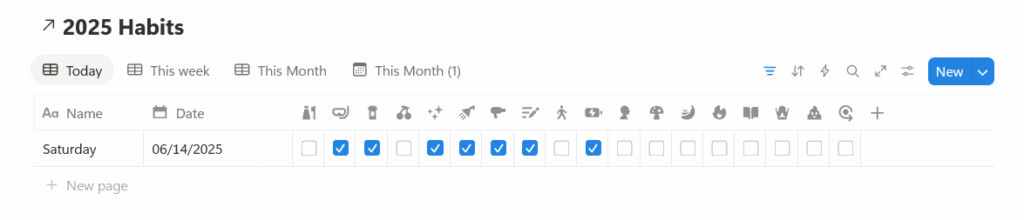
Step One: Create your database
To create a database, start anywhere on any page and click the plus (+) icon and search down for a database – inline preferable. It will still create it’s own page for it’s storage, but this will put it in the page your are working on.
Name your database – I named by 2025 Habits but you can use it perpetually too.
Step Two: Clean up
Next, let’s clean it up and review where we change things.
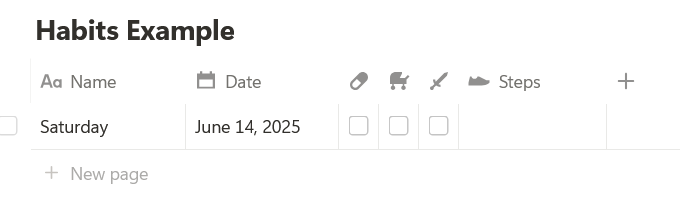
Start by removing anything it created and making an example page. All my habit pages are named by day – Monday, Tuesday, and so on if you want to save a step here. But for setup, you can use anything as an example.
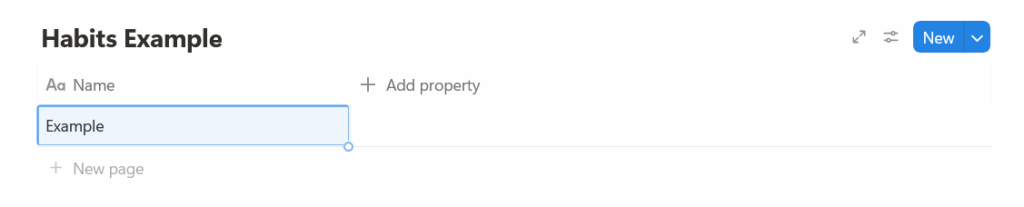
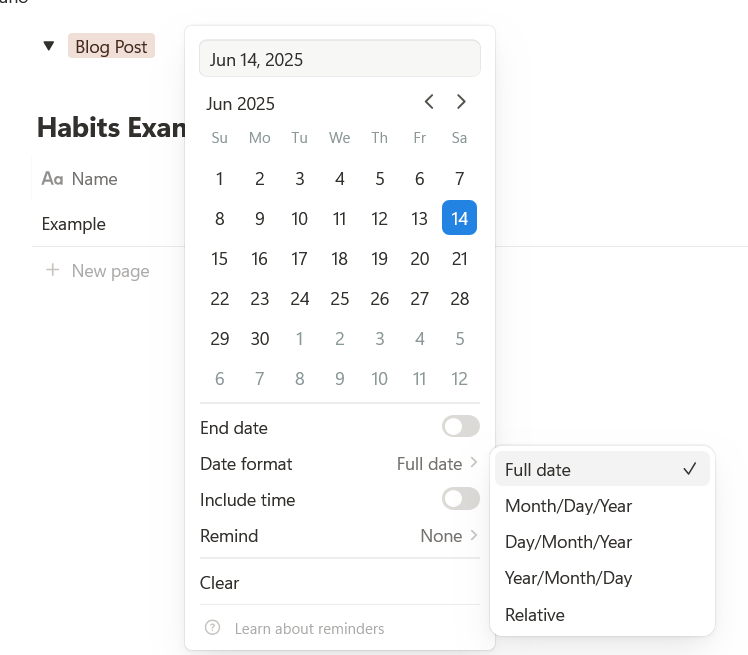
Next, let’s add a date property – this is important because that is how we will know the date we are referencing for all of our habits. Click add property and add date. Select today – whatever date you are working on.
Next, I am just adjusting the size of my properties so I can start adding habits. You can do this by using the slider in between each property on any page or view. You can also hide a property, such as date, from view to make this a cleaner tracker – including name (so you only see date.
Bonus Tip! Did you know you can change how the date is shown? You can elect to have it be easier for you in your habits by changing this to your preferred method.
Step Three: Make Habits
Finally to add a ‘habit’ to this tracker, you will add a new property of checkbox. A checked box will mean you did the habit. Unchecked means you did not. I use Icons to keep track of multiple but you can display the title.
By using the checkbox property, you can hide the title and just see the icon. So you icon represents the habit, and you can easily have them all show in a clean manner.
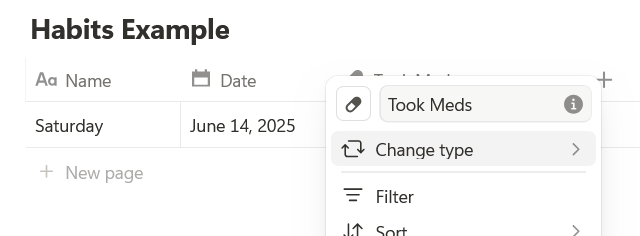
Now to edit your icon, click the property and you can pick your icon and rename it.

Now to create all your habits, rinse and repeat! Create all checkbox properties, name and add icons. Once you are done, slide the names to hide them and it will appear as a clean database with check boxes, icons at the top
You can add a decent chunk on a single page. Don’t make more days until you make all your habits, this is my example one so I had it randomize a few icons for me. You can a note tabs, or use numbers here if you log steps or something as well. You would just create a numbers property, name it and icon it – and make the field small enough to fit on the page neatly.
Once you are happy with your tracker, to make additional pages is annoying only once. Make sure you have no boxes checked at this time. If you add a new habit it will add it to all pages, it’s just easier to copy the day after you are all set.
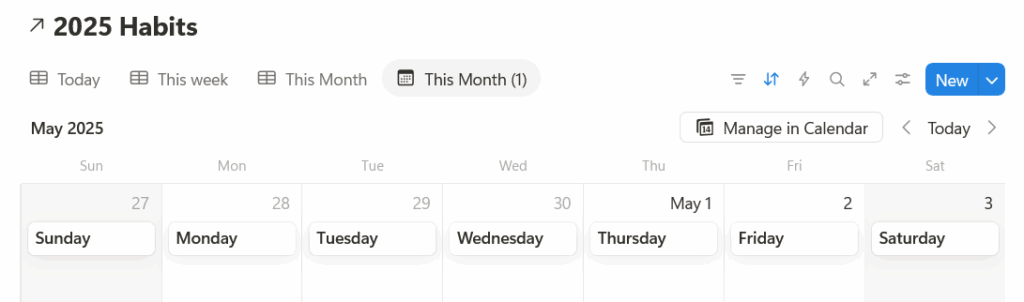
First, to make it easier, let’s create a new view. To do this, click the plus (+) by the name of the database and select calendar. I named mine, this month. You should see the single page you have on your date you selected.
From here, we are going to copy it 7 times and place them on the next week. Sadly, it will not autoname them. Not without a ton of formulas right now. If that changes I’ll update with it and plop it here.
For now you have to manually copy and rename it – Monday, Tuesday, etc. Once you do that you can drag it to the correct calendar and it will just be right on the date however. You will need to this every once in awhile so you have new days – or do it all at once if you need to kill time. I do a few months at a time and it usually takes me like, 10 minutes. Make sure your check boxes are empty and if you have a full week done, it’s very easy to just copy them all at once and drag n drop them where you need them.
Okay now you are all set. If you flip back to your main page, you can now filter for ‘this week’ or ‘today’ only under the filters tabs. I keep one for this week, this month, and today (for front).
You can hide a icon/property if you decide to drop that habit for the rest of the year – or maybe it doesn’t apply anymore (new medications, etc). And you can add new ones anytime. If you add a new property to any page, it will put it on all so no need to update the various days – it will apply to all.
Once again, databases are fun D: hope you were able to complete yours.
Happy digital planning friends.
Again, feel free to ask any questions if you get stuck, or just need some Notion help below.